Notations guides
Use your notes offline across devices
Read and edit synced Notations notes without a connection. Prepare each device online first, then let your changes sync when you reconnect.
Prepare each device before going offline
- Open Notations online and sign in to the same account on each device.
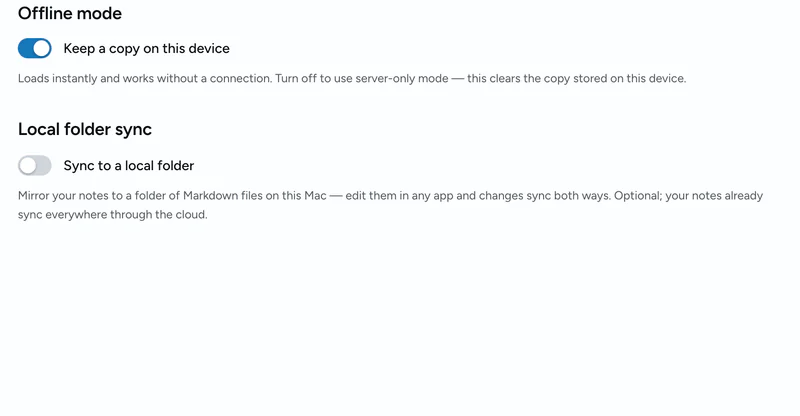
- Open Settings → Sync. Leave Keep a copy on this device enabled under Offline mode.
- Return to your notebook and open the sync-status indicator. Wait for synchronization to finish; use Sync now if needed.
- Open the notes you need, then briefly disconnect and verify you can read them. Make a small test edit, reconnect, and confirm it appears on your other device.
The local copy belongs to that browser and device. Signing in on a laptop does not prepare your phone automatically.
What works without a connection?
Read locally synced notes, write and edit notes, and work with your notebook’s local organization. Changes wait locally until they can sync. Initial sign-in, remote AI, and enabling sharing or publishing need an internet connection.
Do not assume every hosted image, audio file, or external embed is available offline. Check important material on the device before relying on it away from a connection.
Install Notations for easy access
Installing puts Notations on your Home Screen, dock, or Start menu and opens your notebook in its own window. Follow the per-browser install steps.
This installs the web app; it does not create a separate native app or replace the initial sync. You can also use Notations in an ordinary browser tab.
Reconnect and check your changes
Open Notations online and let pending changes finish syncing before switching devices. If conflicting edits need attention, review the conflict copies rather than assuming one device’s version is the final one.
If a note is missing offline, reconnect and check the account and sync status. A cloud-synced note can be downloaded again; a change that never synced depends on the local copy still being present.
Keep an export as well as a synced copy
Browser storage can be cleared by you or your device. Avoid clearing site data, signing out, or disabling offline mode while you have unsynced work. Turning offline mode off clears the device copy.
Use Settings → Notes → Export to download your notes as Markdown. The ZIP is useful for portability, but does not bundle hosted images or every app setting. Keep separate copies of important attachments. Read the import and export limitations.
Optional local-folder sync is separate from the browser’s offline copy and requires a supported setup. Cloud sync is not a replacement for an independent backup.