Notations guides
Connect Claude to your notes through MCP
Connect Claude to Notations to search and read saved notes, organize them, and save new writing. Start with a read-only task before asking it to make changes.
What you need
A Notations account, an internet connection, and a Claude account with access to custom remote connectors. Organization policies may require an administrator to add or approve the connector. Connecting Claude does not require an Anthropic API key in Notations.
MCP is the Model Context Protocol: it lets the assistant call tools provided by your notebook. Your external Claude connection is separate from the optional assistant inside Notations.
Connect in five steps
- Sign in to Notations and open Settings → Connections.
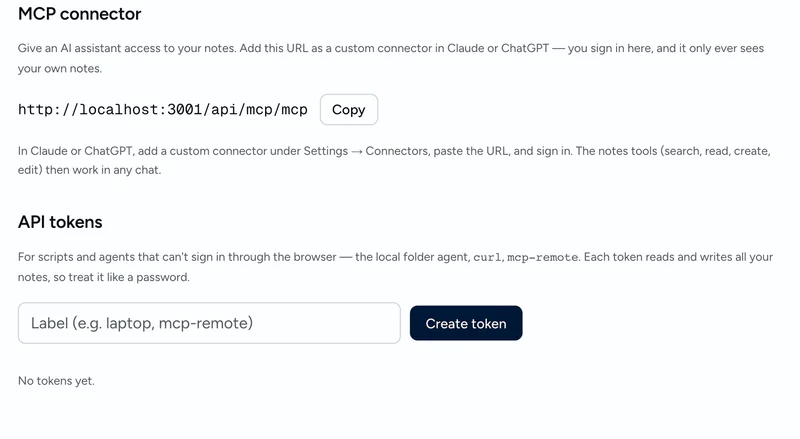
- Under Claude / MCP, copy the connector URL:
https://notations.app/api/mcp/mcp. - In Claude, open Customize → Connectors and choose Add custom connector. Some interfaces place Connectors under Settings.
- Enter the Notations URL, add the connector, then connect and complete the Notations sign-in and authorization flow.
- Make the connector available in your conversation and ask Claude to find a note you recognize.
Claude’s menus and plan availability can change. Team and Enterprise owners may need to configure the connector first. See Anthropic’s current remote-connector instructions.
Test reading before editing
Search my Notations notes for onboarding. List the matching titles, then read the note I choose. Do not change any notes.
Check that Claude returns your expected notes. Then try a small write task, such as saving a new private test note, and open it in Notations to verify the result.
What the connection can do
- Search and read your saved material.
- Create notes and edit existing writing.
- Update tags, organize folders, and add related pages.
- Change sharing and publishing settings when instructed.
The connection is scoped to your account, but it is not a read-only connection. Be specific about which notes should change and whether sources should stay untouched. Content used by a cloud assistant is processed by that provider.
Search, costs, and limitations
Keyword retrieval works without an embeddings key. Meaning-based retrieval needs a separate OpenAI embeddings key and an indexed notebook; otherwise retrieval falls back to keyword matching. Embedding sends note text to OpenAI.
Your Claude plan and usage limits apply. The optional in-app assistant instead uses your own supported provider API key, with separate provider charges. Compare the setup and costs.
If the connection does not work
- Confirm that you copied the full URL, including both trailing
mcpsegments. - Complete authorization with the Notations account containing your notes.
- Check that the connector is enabled for the conversation and allowed by your organization.
- Try an exact title or distinctive phrase if a broader search finds nothing.
Cloud connections require internet access. You can disconnect the connector in Claude when you no longer want to use it.