Notations guides
Save Claude conversations as organized notes
Keep a useful Claude answer or conversation in Notations, give it a folder and tags, and find it again without scrolling through chat history.
Two ways to save something worth keeping
Copy the text into a new note, or connect Claude through MCP and ask it to save the selected material for you. Copy and paste needs no AI connection. MCP adds the ability to read, create, and organize notes from your assistant.
This saves the material you select. It does not automatically archive your Claude history or preserve an interactive Claude artifact as a working application.
Option 1: copy a conversation into a note
- In Claude, copy the answer or conversation excerpt you want to keep. Include your question if it explains the answer.
- In Notations, use Add note or folder and create a note. Give it a title you would recognize later.
- Paste the text into the editor. Preserve speaker labels for a conversation, or use headings for a finished answer.
- Save the note, then choose a folder and add useful tags. Check that the text and formatting match what you wanted to keep.
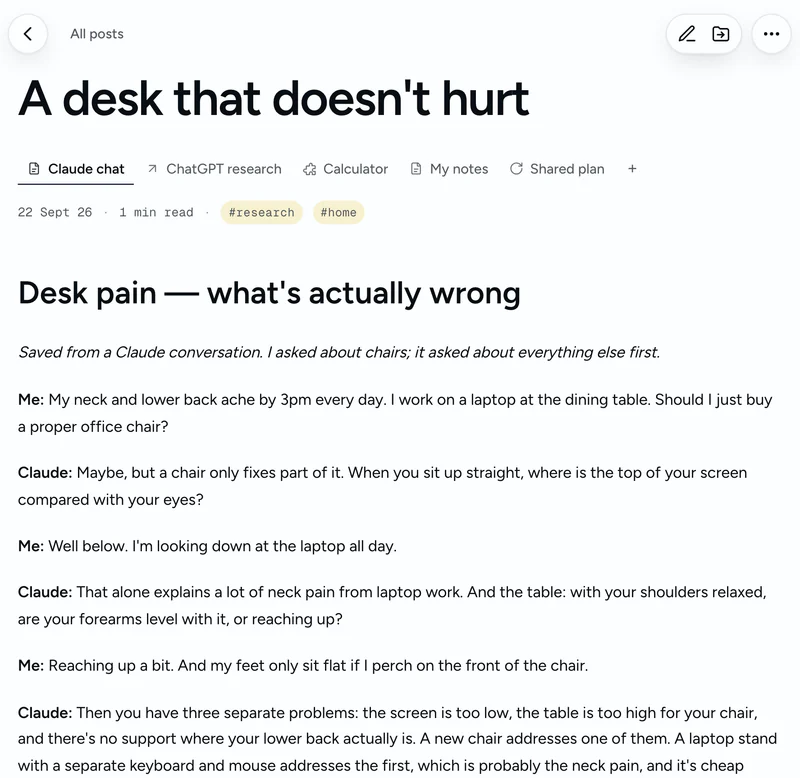
A title such as “Desk pain — what's actually wrong” will be easier to recognize than “Claude chat.” A source link and the date can help you return to the original context.
Option 2: ask a connected Claude to save it
First follow the Claude MCP connection guide. Then give Claude a precise instruction about the text, destination, and visibility.
Save the exchange above in Notations as “Desk pain — what's actually wrong.” Keep the wording intact, tag it research and home, and keep it private. Return the saved note’s link.
Open the returned note and check the title, body, folder, and tags. A statement in chat that something was saved is not a substitute for checking the saved page.
Keep the original when you build on it
Add source material, working drafts, and revision notes as separate related pages. A connected assistant can read those pages and help with the next version while leaving the sources unchanged. Use the Conversation tab to return to the exchange that started the work.
Find my saved desk-pain conversation and the ChatGPT research report. Read both. Write a one-page plan as a new related page, note where the two disagree, and leave the source pages unchanged and private.
This is an optional next step. A saved answer can remain a useful reference without becoming a project. Explore the five-page example.
Keep an interactive HTML artifact too
If your assistant creates a self-contained HTML calculator, prototype, or visualization, save the HTML file itself. Upload the .html file into Notations, open the saved page, and check its controls. Keep the conversation or explanation as a related note so you can return to the reasoning behind it.
Compatible HTML artifacts run in a sandboxed frame. An application that needs its own backend or privileged browser access may not work as a self-contained artifact. Check it before sharing, and keep any external dependencies in mind when using it offline.
Find it again
Use Notations search with words from the title or body, browse its folder, or use its tags. A connected Claude can retrieve saved notes too. Meaning-based retrieval requires optional embeddings setup; keyword search does not.
What should I check before saving?
Review AI-generated facts, citations, and any sensitive material. Ask for an exact copy when you need a record; ask for a summary when you want a shorter reference. Those are different outcomes.